 In developing a website, a lot of effort goes into the visible part of the site (front-end) to offer visitors a good experience. But this is only the tip of the iceberg, because a lot of work also goes into entering and managing content data in the back office.
Have you planned for as good a user experience for your administrators as for your users?
The main reason a simple CMS like WordPress often beats Drupal when choosing a platform is probably that its default administration interface is more user-friendly for less knowledgeable users. Whereas Drupal is a much more powerful CMS with a dedicated developer community, it has, without a doubt, a more complex, developer-oriented back office.
For a Drupal developer, it is essential that this CMS be practical to use. But throughout the website development process, we notice that the experience of the future site manager is not taken enough into consideration.
Fortunately, Drupal has planned for this, and it is perfectly possible to equip your clients with a management interface even more user-friendly than any other CMS. In this article you will find a few tips that can help you do so.
Choose a user-friendly, responsive administration theme The default administration theme named “Seven”, the most used in Drupal 7, was introduced a long time ago. But as time passes, the smartphone industry has grown phenomenally, directly influencing a huge share of web traffic, even surpassing desktop traffic. So there is no need to demonstrate that more and more webmasters want to manage their Drupal sites across different screens, whether a tablet or a smartphone. A responsive administration theme is therefore necessary.
It is entirely possible to edit and administer a website from anywhere and from any device. “Adminimal” is one of the most popular administration themes under Drupal. It provides a responsive layout, a modern and easy-to-use design, features polished user interface elements, streamlines content layout through precise columns and blocks and improves navigation with the help of the “Submodule Adminimal” menu.
Choose a responsive administration menu.
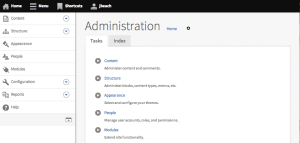 Just like the need for a user-friendly administration theme, a Drupal site also requires a responsive administration menu. “Navbar” is a powerful and versatile administration menu. In 2012, “Navbar” was first developed as part of the “Spark” project, created to work around some mobile editing problems with the Drupal 7 toolbar. At that time, the toolbar shipped with Drupal 7 was not very practical and not very friendly for small-screen devices.
With the “Navbar” administration bar, you can see a bar containing all the top-level administration components displayed at the top of the screen. The bar also displays links provided by other modules, such as the links from the “Core Shortcuts” module, the “Preview Responsive” module and so on… In addition, the vertical orientation of “Navbar” is much appreciated for easy access to deep-level administrative functions. For that, you don’t even need to refresh the page! The “Navbar” module is also available for Drupal 8.
Smart use of the “Shortcuts” module.
For all content administrators, the “Shortcuts” menu is a very good option. The dynamic toolbar at the top of the page provided by the “Shortcuts” module helps administrators add shortcut links. On the site, this module can hold the most-used toolbar links (they are visible to users who are allowed to access the “Shortcuts” toolbar). If an administrator uses “Shortcuts” wisely, they can easily create links to the site’s most commonly used pages. Organizing multiple shortcut links is very practical with this module. You can also use the shortcuts bar with “Shortcut per Role” for a different experience for each type of administrator. The module provides simple functionality, since it assigns different sets of shortcuts based on certain roles. To be able to use this module, having a base “Shortcuts” module is required. Using these modules with clean shortcuts will surely help editors get a user-friendly Drupal administration experience.

Think about field groups to get structured forms.
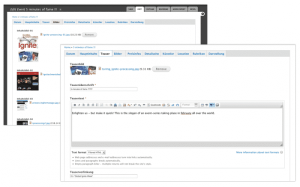
It is hard for administrators to manage long data entry forms. But there is a solution: when building a website with Drupal, make sure to use the Field Group module. The purpose of this module is to group the different fields together. For example, if you have an event, you can separate the fields from one another: location, date (start and end dates) and basic information (title, description and main image) into different groups. Field categorization should be considered to give meaning to each type of data and information that will be used by administrators.
The module comes with a default HTML wrapper that contains pre-grouped fields. The HTML wrappers are vertical tabs, horizontal tabs, accordions, fieldsets and div wrappers. Use the “Field Group” module for Entry Node forms to make the forms more structured, with the right amount of information to display.
Use an improved dashboard that gives the user “Total Control”.
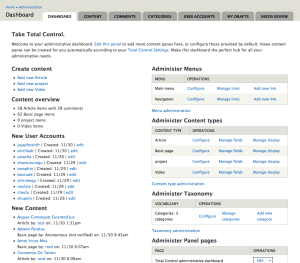 By creating a dashboard for the administrator, the “Total Control Admin Dashboard” module provides better aggregation of site functions in the dashboard and lets you customize it. Using views and panels, the dashboard works to create a “central control panel” for the entire site. The dashboard also features several panes for site statistics and quick references. Each Panel pane gives total control and is customizable via settings. Don’t forget to modify the dashboard to provide a tailored experience for the site administrator.
Use “String Overrides” to simplify Drupal terminology.
Sometimes, Drupal uses particular jargon that makes things confusing for the administrator. If you have never worked with Drupal before, you probably don’t know terms such as: Nodequeue, Taxonomy, Fieldable Panel Panes, etc. So what can you do to simplify them for your client? Switch to “String Overrides,” which provides the fastest and easiest way to replace any text that goes through the t() function on the site. “String Overrides” lets the administrator replace strings in all languages, providing local support in a convenient way.
A website developer must think of future site administrators as people with no technical knowledge, so it will be obvious to rephrase these terms with an understandable approach. For example, you can use the “String Overrides” module to make Drupal jargon more universal, such as:
- Nodequeue becomes Content queue.
- Nodequeues becomes Content queues.
- Taxonomy becomes Categories.
- Vocabulary becomes Category.
Conclusion There are several important steps a Drupal developer must take into account to make a site user-friendly for their client, and as explained above, site administrators must be considered important users of the site. As the site developer, the administrator’s experience depends entirely on you, and taking it into account will let your client offer their visitors a better user experience.